
 Desktop app · Windows
RedBill Bargate
Design and print professional barcode labels, price tags and shelf labels for your shop. Add your products, pick a label, print on any thermal label printer or A4 sheet — with automatic backup to your own Google Drive.
Everything a shop needs to label its products.
Every feature below is in the free download. No subscription, no label limit, no watermark.
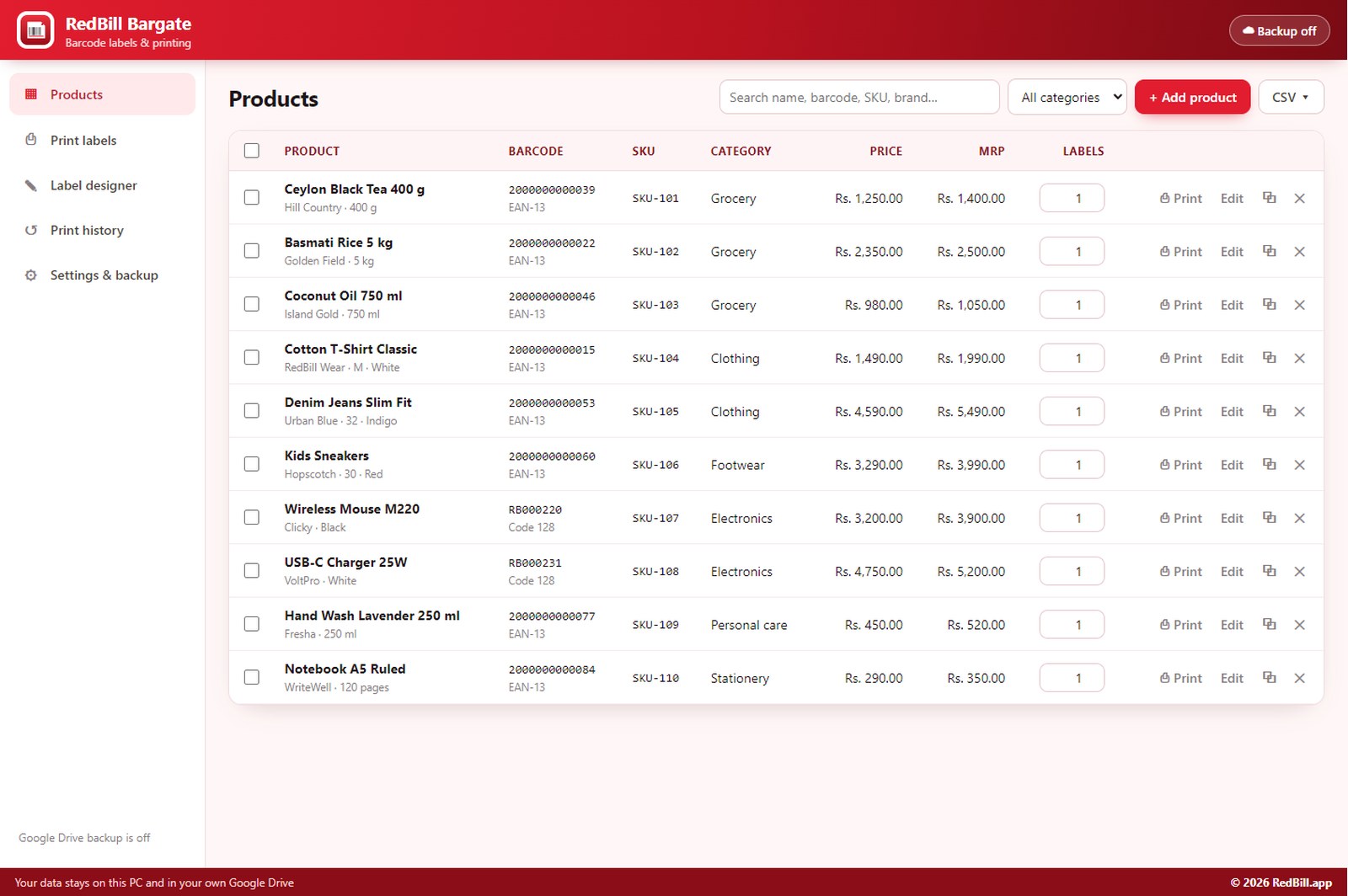
Product list
Name, barcode, SKU, price, MRP, category, brand, size, colour, unit, batch, mfg. and expiry dates, plus two custom fields. Search, filter and sort in a click.
12 barcode types
EAN-13, EAN-8, UPC-A, UPC-E, Code 128, Code 39, ITF-14, Interleaved 2 of 5, Codabar, GS1-128, QR Code and Data Matrix.
Automatic barcode numbers
New products get a valid EAN-13 (with the correct check digit) or Code 128 number automatically — never a duplicate.
Drag-and-drop label designer
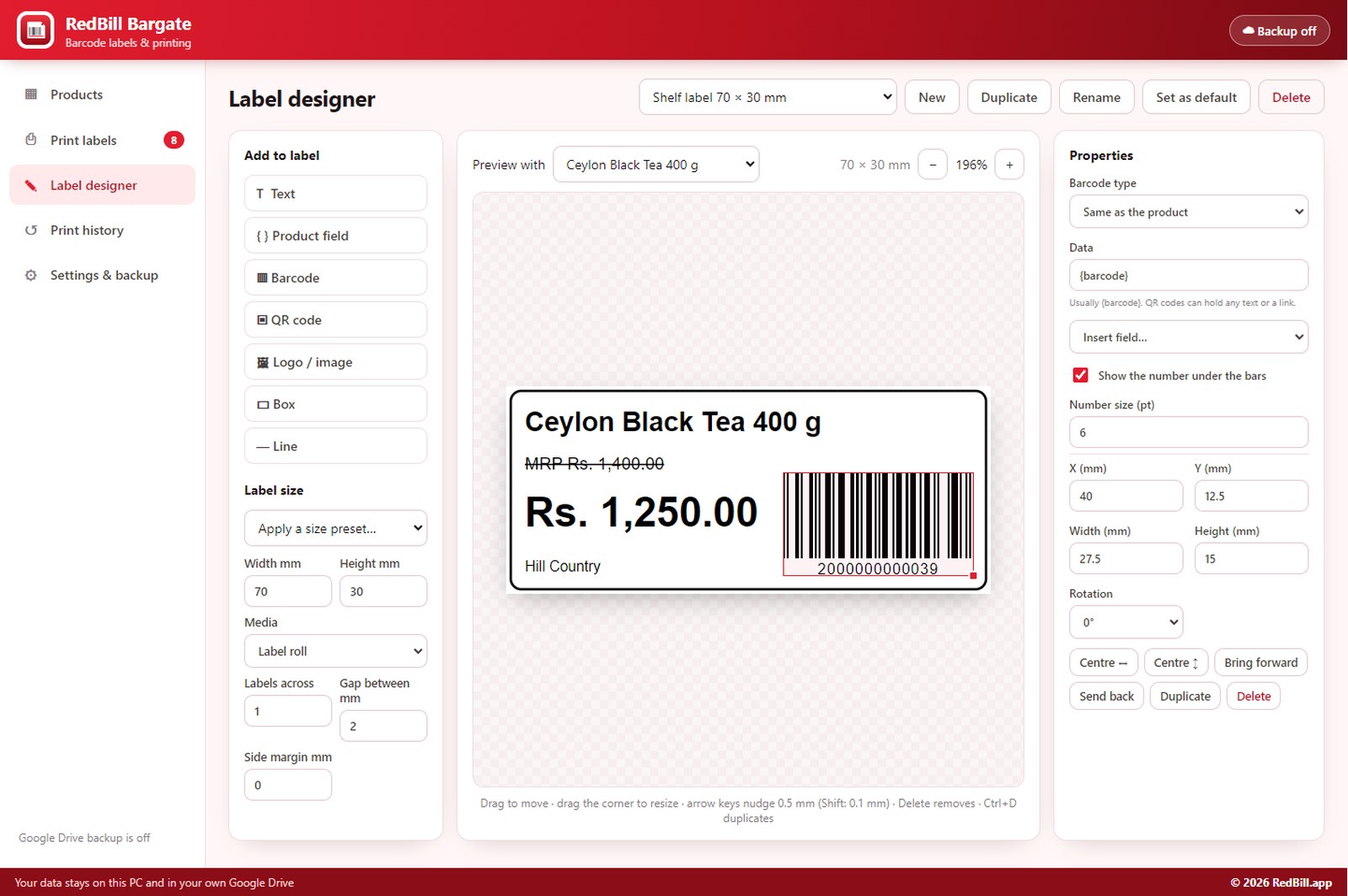
Place text, product fields, barcodes, QR codes, your logo, boxes and lines on an exact-millimetre label. Fonts, bold, strike-through MRP, rotation and auto-fit text.
Ready-made templates
Price tag 50×25, retail 38×25 two-across, shelf label 70×30, garment tag 40×60, QR label, and A4 sheets of 65 and 24 labels — plus 16 standard sizes.
Any printer
Thermal label printers (Zebra, TSC, Xprinter, Godex, Honeywell, Brother and more) or any office printer with A4 label sheets.
Print queue with quantities
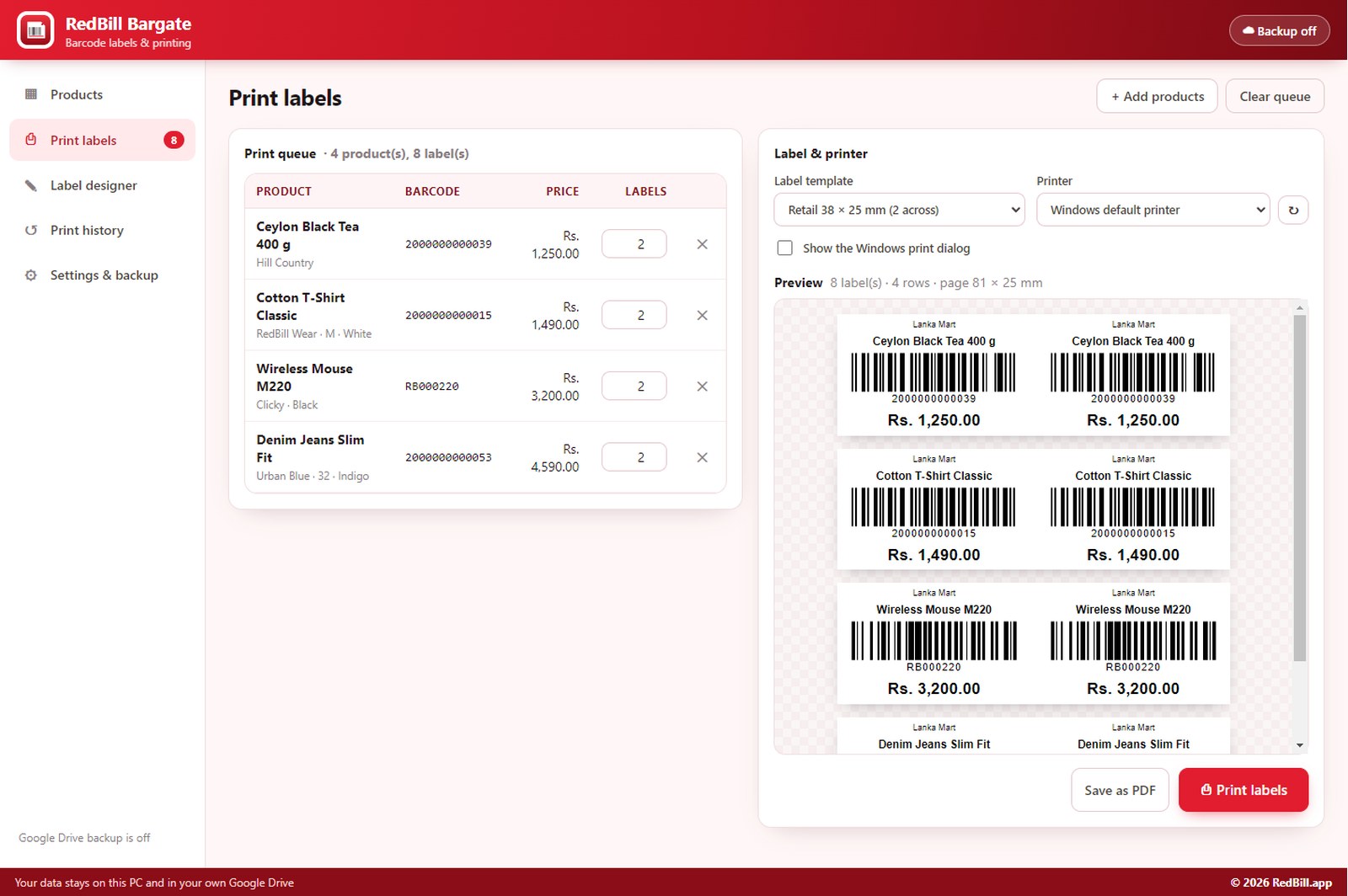
Choose how many labels each product needs, see a live preview of every page, then print the whole batch in one click.
Use part-used sheets
“Start at label no.” skips labels already used on an A4 sheet, so no sheet is wasted.
Import from Excel / CSV
Bring in hundreds of products from your shop software or Excel. Missing barcodes are generated; existing ones are updated.
Print history & reprint
Every print job is saved. Reprint the same labels again with one click.
Google Drive backup
Every change is backed up automatically to your own Google Drive. Restore everything on a new PC in seconds.
Save as PDF
Export labels as an exact-size PDF to send to a print shop or print later.
Simple enough for any shop counter.
Up and running in five minutes.
Download & extract
Tick the box above, click Download for Windows, then right-click the zip → Extract All.
Install
Run RedBill-Bargate-Setup-1.0.0.exe. It installs for your Windows user only — no administrator password needed. If Windows says “Windows protected your PC”, click More info → Run anyway.
Set up your shop
Open Settings & backup: enter your shop name and currency, pick your label printer and connect Google Drive.
Add products
Click + Add product or import a CSV. Barcode numbers are created for you.
Tick products → Add to print queue, choose a label template, check the preview and click Print labels.
How to do everything.
Open the task you need and follow the steps.
Add a product and its barcodeProducts → + Add product
- Go to Products and click + Add product.
- Type the product name. A barcode number is filled in automatically — or type the number already printed on the product’s packaging and choose its type (EAN-13 for most retail products).
- The barcode is drawn live below the number. A red message tells you if a number is not valid for that type.
- Fill in price, MRP and any other details you want on the label, and how many labels to print for this product.
- Click Save product, or Save & print to go straight to printing.
Import many products from ExcelProducts → CSV → Import
- Click CSV → Download a blank CSV template and open it in Excel.
- Fill one product per row: Name, Barcode, Barcode type, SKU, Price, MRP, Category, Brand, Size, Colour, Unit, Batch, Mfg date, Expiry date, Labels. Only Name is required.
- In Excel use File → Save As → CSV (Comma delimited).
- In RedBill Bargate click CSV → Import products from CSV and choose the file.
- Rows without a barcode get a new number automatically. Rows whose barcode already exists update that product instead of creating a duplicate.
Design your own labelLabel designer
- Open Label designer and pick a template to edit, or click New and choose your label size.
- Use Add to label for text, product fields (name, price, MRP, size, expiry…), barcode, QR code, your logo, a box or a line.
- Drag items to move them and drag the red corner to resize. Arrow keys nudge by 0.5 mm (hold Shift for 0.1 mm).
- Change font, size, bold, strike-through (great for MRP), alignment and rotation in Properties. “Shrink to fit” keeps long names inside their box.
- Use Preview with to see the label with any of your products. Click Set as default to use it automatically when printing.
Print on a thermal label printer (roll)Zebra, TSC, Xprinter, Godex…
- Install your printer’s Windows driver from the manufacturer’s website.
- In Windows Printers & scanners → your printer → Printing preferences, set the paper / stock size to your label size (for example 50 × 25 mm) and the gap type to gap / web. For two-across rolls, set the full roll width (e.g. 80 mm).
- In RedBill Bargate choose a template of the same size (e.g. Price tag 50 × 25 mm) and select your printer.
- Print one label first. If it is slightly off, adjust Settings → Shift right/left and Shift down/up in millimetres.
- Tick Show the Windows print dialog if you want to choose printer options for each job.
Print on A4 label sheetsOffice printer · 65, 40, 24, 21 or 14 labels per sheet
- Choose the A4 template that matches your sheets (the label size is printed on the packet), or set columns, rows and margins in the designer.
- If some labels on a sheet are already used, enter the first free label in Start at label no.
- Print on plain paper first and hold it against a label sheet to check alignment. Fine-tune with Settings → Shift if needed.
- In your printer settings use Actual size / 100% — never “Fit to page”.
Back up to Google Drive and move to a new PCSettings & backup
- Open Settings & backup → Connect Google Drive and sign in to your Google account in the browser.
- From then on, every change is backed up automatically to a RedBill Bargate Backups folder in your Drive. The badge at the top right shows the last backup time — click it to back up now.
- On a new PC: install RedBill Bargate, connect the same Google account and choose Restore now when it finds your backup.
- The app only gets access to the files it creates in your Drive — never your other files. A local copy is also kept for each of the last 14 days, and you can export a backup file any time.
Reprint labels you printed beforePrint history
- Open Print history — every job is listed with date, template, printer and products.
- Click Print again. The same products and quantities are loaded into the print queue.
- Change quantities if needed and click Print labels.
Printers, labels and barcodes.
| Label printers | Any printer with a Windows driver: Zebra, TSC, Xprinter, Godex, Honeywell, Citizen, Argox, Brother QL, Rongta, HPRT and others · USB, network or Bluetooth |
|---|---|
| Office printers | Any inkjet or laser printer with A4 label sheets (65, 40, 24, 21 or 14 labels, or your own layout) |
| Label sizes | Any size from 5 mm up; presets from 25 × 15 mm to 100 × 150 mm, 1–6 labels across a roll |
| Barcodes | EAN-13, EAN-8, UPC-A, UPC-E, Code 128, Code 39, ITF-14, Interleaved 2 of 5, Codabar, GS1-128, QR Code, Data Matrix |
| Import / export | CSV (comma or semicolon) from Excel and most shop software · PDF output · full backup file |
| Requirements | Windows 10 or 11, 64-bit · internet only for Google Drive backup |
Free to use — please read the terms.
By downloading, installing or using RedBill Bargate you agree to the full license agreement. The main points:
Free use
Free for personal and commercial use in your shop, on any number of computers. No sign-up, no subscription, no label limits.
No reselling
You may share the unmodified installer for free with the license and copyright notices. You may not sell it, bundle it with paid software, or distribute modified versions without written permission from RedBill.app.
Check your labels
You are responsible for checking printed labels, prices, barcodes and dates before use. Generated barcode numbers are for in-store use; selling through retailers may require registered GS1 numbers.
No warranty, no liability
The software is provided “as is”, without warranty of any kind. To the maximum extent permitted by law, RedBill.app is not liable for any loss of data, profits, wasted labels, incorrect labels or prices, hardware damage, or any direct, indirect or consequential damages.
Ownership
© 2026 RedBill.app. All rights reserved. The software is licensed, not sold. Do not remove copyright notices or reverse engineer it, except where the law allows.
Your data & privacy
Your products and labels stay on your PC and, if you connect it, in your own Google Drive. The app can only see the files it creates there. RedBill.app never receives your data.
Common questions.
Windows says “Windows protected your PC” — is it safe?
- That message appears for new apps that are not yet widely downloaded. Click More info → Run anyway. To check your download is genuine, compare its SHA-256 with the one under the download button (PowerShell: Get-FileHash RedBill-Bargate-1.0.0-Windows.zip).
My labels print slightly off or across two labels.
- Set the label size in the printer’s own Printing preferences to exactly the template size and choose gap / web sensing, then run the printer’s calibration (most printers: hold the feed button). Small shifts are fixed with Settings → Shift right/left / down/up.
Will my scanner read the barcodes?
- Yes — barcodes are printed as sharp vector graphics with correct check digits. Keep a little white space on both sides of the barcode and print it at least about 25 mm wide for EAN-13.
Does it need the internet?
- No. Everything works offline. Internet is only used for the optional Google Drive backup; it catches up automatically when you are back online.
Can I use it on more than one PC?
- Yes, it is free on any number of PCs. To move your products and templates, connect the same Google account and restore, or export a backup file and restore it on the other PC.
Does it work with RedBill POS?
- Yes — print labels for the products you sell in RedBill POS. Export your products to CSV and import them here, or simply add them. The barcodes scan straight into RedBill POS billing.
I need help or found a bug.
- Email hello@redbill.app with your printer model, label size and a screenshot.
Get RedBill Bargate for Windows
Version 1.0.0 · 78 MB · Free · No sign-up · No admin rights
Download for Windows