
 Desktop app · Windows
RedBillCoverFree data recovery software for Windows
RedBillCover is free data recovery software for Windows 10 and 11. It recovers deleted and Shift+Deleted files, files from RAW, formatted and damaged drives, lost partitions and failing hard disks — with original names and folders wherever the drive still holds them.
What is RedBillCover?
RedBillCover is a free Windows desktop application from RedBill.app that recovers lost files from hard disks, SSDs, USB flash drives and SD cards. It reads drives directly and never writes to them, so trying a recovery cannot make the data loss worse.
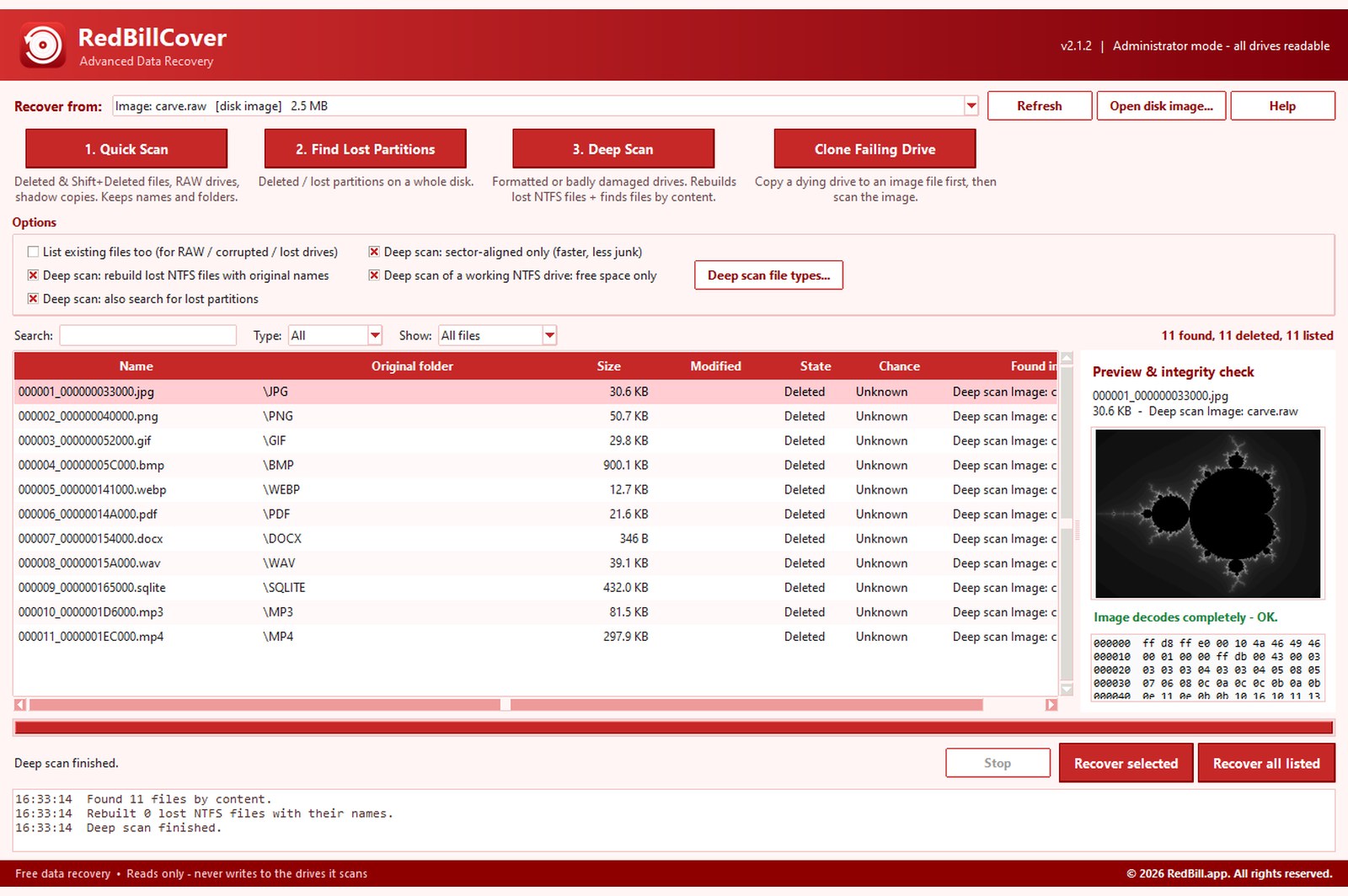
It combines four recovery methods: a Quick Scan of the NTFS, FAT and exFAT file tables for deleted and Shift+Deleted files; a search for lost or deleted partitions; a Deep Scan that rebuilds quick-formatted NTFS drives with their original file names and finds 40+ file types by content; and a two-pass cloner for failing drives. Every recovered file is checked byte-for-byte and listed with its SHA-256 fingerprint in a recovery report.
Data that has been overwritten, erased by an SSD's TRIM command, or encrypted by BitLocker without the recovery key cannot be recovered by any software — RedBillCover's preview shows this before you recover.
| Developer | RedBill.app |
|---|---|
| Latest version | v2.1.2 |
| Last updated | |
| Price | Free — no trial, no subscription |
| Platform | Windows 10 and Windows 11 (64-bit) |
| Download size | 12 MB (.zip) |
| File systems | NTFS, FAT12, FAT16, FAT32, exFAT · MBR and GPT |
| Install | Administrator rights needed to read drives |
| License | Free software license |
Lost files right now? Read this before you download
- Stop using the drive that lost the files. Every new file saved on it can overwrite what you want back.
- Do not install RedBillCover on that drive. Download and install it on a different drive, a USB stick, or another computer.
- Always save recovered files to a different drive from the one you are recovering.
- Do not format the drive or run CHKDSK before you have recovered your files.
- If the drive clicks, freezes or is very slow, use Clone Failing Drive first (see the guide below).
What can RedBillCover recover?
Every feature below is in the free download. Nothing is locked, there is no file-size limit and no “upgrade to recover” screen.
Deleted & Shift+Deleted files
Finds files removed with Shift+Delete or emptied from the Recycle Bin, with their original names, folders and dates.
RAW & “needs formatting” drives
Reads drives Windows can no longer open. On NTFS it falls back to the backup boot sector automatically.
Lost & deleted partitions
Finds partitions that were deleted or lost from the partition table, even when their first sector is destroyed.
Rebuilds formatted NTFS drives
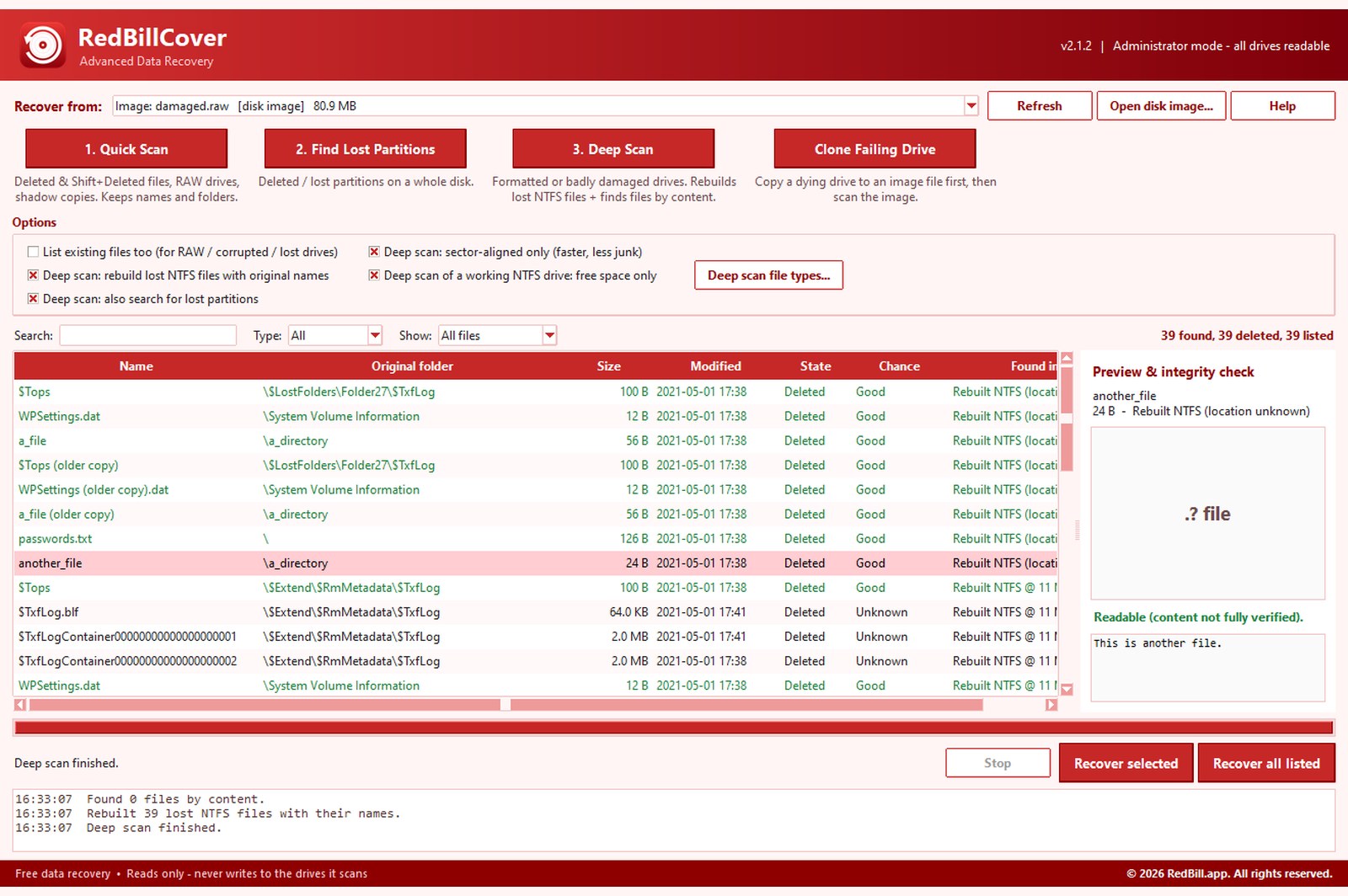
After a quick format or a destroyed file table, it rebuilds files from old file records still on the disk — keeping original names and folders.
Deep scan by file content
When nothing else is left, it finds photos, videos, documents, music, mailboxes and archives by their content — 40+ formats.
Clone a failing drive
Copies a dying disk to an image file, skipping bad areas first and retrying them later, so you scan a safe copy instead.
Windows shadow copies
Opens the snapshots Windows takes automatically, which can hold files — or older versions — deleted or overwritten since.
Preview & integrity check
See photos, text and raw bytes before recovering. Each file is checked: decodes fine, damaged, or wiped to zeros.
Byte-for-byte verified
Every saved file is read back and compared with the data read from the drive. A report lists each file's SHA-256 fingerprint.
BitLocker aware
Detects locked BitLocker drives and walks you through unlocking them with your recovery key, then recovers from the unlocked drive.
Read-only and safe
It never writes to the drive it scans. Unreadable sectors are skipped and filled with zeros instead of crashing the scan.
Private and offline
No account, no upload, no tracking. Your files never leave your computer.
RedBillCover screenshots
How do I install RedBillCover?
Download the zip
Tick the box above and click Download for Windows. Save it to a drive that did not lose files.
Extract it
Right-click the zip → Extract All. You get RedBillCover-Setup-2.1.2.exe, license.txt and a short read-me.
Run the setup
Double-click the setup file. If Windows shows “Windows protected your PC”, click More info → Run anyway (see FAQ).
Accept & choose a folder
Read and accept the license. Pick an install folder on a healthy drive — not the one you are recovering.
Open RedBillCover
Start it from the desktop or Start menu and click Yes on the administrator prompt. Windows only lets programs with admin rights read drives directly.
How do I recover deleted files with RedBillCover?
Open the situation that matches yours and follow the steps. In every case you finish the same way: select the files, click Recover selected and save them to a different drive.
I deleted files (or used Shift+Delete / emptied the Recycle Bin)Quick Scan — keeps names and folders
- In Recover from, choose the drive letter the files were on (for example C: or D:).
- Click 1. Quick Scan. It usually takes seconds to a few minutes.
- Use Search, Type and Show: Deleted only to find your files. Folders appear in the Original folder column.
- Click a file to preview it and see its integrity check. Prefer files whose Chance is Good.
- Select the files (Ctrl+click or Shift+click for many) and click Recover selected. Choose a folder on another drive.
Not found? Also try the Shadow copy of … entries at the end of the drive list (older Windows snapshots), then 3. Deep Scan.
The drive shows as RAW, “needs to be formatted” or opens emptyQuick Scan with “List existing files too”
- When Windows asks you to format the drive, click Cancel. Never format it.
- Choose that drive letter in Recover from.
- Tick List existing files too in Options, then click 1. Quick Scan.
- If nothing is found, choose the whole Disk N entry that holds the drive and run 3. Deep Scan.
- Recover your files to a different drive.
The drive shows a yellow triangle or lock, or the app says “BitLocker LOCKED”Unlock it first — then Quick Scan
- A locked BitLocker drive is encrypted. No recovery program can read it without the key.
- Find your 48-digit recovery key at account.microsoft.com/devices/recoverykey, signed in with the Microsoft account used on that PC. Also check printouts, USB sticks or your company IT department.
- In File Explorer, double-click the drive → More options → Enter recovery key.
- Back in RedBillCover click Refresh, choose the drive letter (it now shows “BitLocker unlocked”) and run 1. Quick Scan.
A partition was deleted or the disk shows “Unallocated”Find Lost Partitions
- Choose the whole disk (Disk 0, Disk 1 …) in Recover from — not a drive letter.
- Click 2. Find Lost Partitions. A list of partitions appears; lost ones are marked LOST.
- Select a partition and click Scan selected partition. All its files are listed with names and folders.
- If nothing is found, run 3. Deep Scan on the same disk — it checks every sector.
The drive was formatted, or nothing else found my filesDeep Scan — the most thorough mode
- Choose the whole Disk N (best) or the drive letter.
- Keep the default options ticked: rebuild lost NTFS files with original names, search for lost partitions and sector-aligned only.
- Optional: click Deep scan file types… to look only for, say, photos and documents.
- Click 3. Deep Scan. It reads the whole drive once — about 1–3 hours per terabyte on a hard disk. You can stop it any time and recover what was already found.
- Files rebuilt with names appear under Rebuilt NTFS. Files found by content are named by type and position (for example 000123_….jpg), sorted into folders such as \JPG and \PDF.
The drive clicks, freezes, is very slow or shows read errorsClone Failing Drive first
- Connect a healthy drive with free space at least as big as the failing one.
- Choose the failing Disk N and click Clone Failing Drive. Save the .img file on the healthy drive.
- Pass 1 copies everything readable fast and skips bad areas. Pass 2 goes back and rescues bad areas sector by sector. A .log lists any sectors that could not be read.
- When it finishes, the image is selected automatically. Unplug the failing drive and scan the image with Quick Scan or Deep Scan.
Drive not detected at all, or not spinning? That is a hardware fault. No software can fix it — contact a professional data-recovery lab.
Recovering and checking your filesRecover, verify and read the report
- Select files and click Recover selected, or filter the list and click Recover all listed.
- Choose a folder on a different drive. RedBillCover warns you if you pick the same disk.
- Files are saved inside a Recovered_date_time folder, keeping their original folders.
- Every saved file is checked byte-for-byte. Open recovery_report.csv to see each file's SHA-256 fingerprint, verification result and any unreadable sectors.
How do I know if a file can be recovered?
| Chance column | GoodPartialPoorUnknown Good: the file's space has not been reused — it should recover fully. Partial / Poor: newer files have overwritten some or all of it. Unknown: found by deep scan; use the preview to check. |
|---|---|
| Integrity check (preview) | OK — the image decodes, the document's parts test fine or the PDF is complete. Damaged — part of the file is missing or corrupt. All zeros — the data was wiped by overwriting or an SSD's TRIM; it cannot be recovered. |
| State | Deleted files were removed or lost. Existing files are shown when you tick “List existing files too” — useful for RAW or lost drives. |
| Found in | Where the file came from: the drive, a partition, a shadow copy, Rebuilt NTFS (deep scan with names) or Deep scan (by content). |
Which drives and file types are supported?
| Storage | Internal and external hard disks (HDD), SSDs, USB flash drives, SD and microSD cards, disk image files (.img, .dd, .raw, .bin) |
|---|---|
| File systems | NTFS, FAT12, FAT16, FAT32, exFAT · MBR and GPT partition tables · BitLocker drives after unlocking |
| Photos | JPG, PNG, GIF, BMP, WEBP, HEIC, TIFF and camera RAW: Canon CR2/CR3, Nikon NEF, Sony ARW, Adobe DNG, Olympus ORF, Pentax PEF |
| Videos & audio | MP4, MOV, M4A, 3GP, AVI, MKV, WEBM, WMV, WMA, MP3, WAV, OGG, Opus |
| Documents & email | PDF, Word DOC/DOCX, Excel XLS/XLSX, PowerPoint PPT/PPTX, OpenDocument ODT/ODS/ODP, Outlook PST/OST/MSG, SQLite databases |
| Archives | ZIP, RAR, 7z, APK, JAR |
| Any file type | Quick Scan, lost partitions and the NTFS rebuild recover every file type, with its name — the list above is only for content-based deep scan. |
| Requirements | Windows 10 or 11, 64-bit · administrator rights to read drives · a second drive or USB stick to save recovered files |
What can no recovery software recover?
RedBillCover uses the same methods as professional tools, but some data is physically gone. These limits apply to every recovery program.
Once new files are written over the old ones, the old data no longer exists. Stop using the drive as soon as you notice the loss.
Windows tells SSDs to erase deleted blocks (TRIM), often within minutes. Deleted-file recovery on SSDs often returns zeros.
Encrypted data is unreadable without the recovery key. Unlock the drive first.
A drive that is not detected, does not spin or makes grinding noises needs a professional lab, not software.
Files found only by content that were stored in pieces may come back partly damaged. The preview shows this before you recover.
Drives erased with wiping tools or a full (not quick) format are overwritten with zeros.
Is RedBillCover free? License and terms
By downloading, installing or using RedBillCover you agree to the full license agreement. The main points:
Free use
RedBillCover is free for personal and commercial use, on any number of computers. No sign-up, no subscription, no locked features.
No reselling
You may share the unmodified installer for free, keeping the license and copyright notices. You may not sell it, bundle it with paid software, or distribute modified versions without written permission from RedBill.app.
No guarantee of recovery
Data recovery cannot always succeed. Overwritten, TRIM-erased, encrypted-without-key or hardware-damaged data may be impossible to recover with any software. Results depend on the condition of your drive.
No liability for data loss
The software is provided “as is”, without warranty of any kind. To the maximum extent permitted by law, RedBill.app is not liable for any loss of data, loss of profits, hardware damage or any direct, indirect, incidental or consequential damages from using, or being unable to use, the software. For critical data, consider a professional recovery service.
Ownership
© 2026 RedBill.app. All rights reserved. The software is licensed, not sold. Do not remove copyright notices or reverse engineer it, except where the law allows.
Privacy & lawful use
RedBillCover works offline and does not collect, upload or share your files or personal data. Use it only on drives you own or are authorised to access.
RedBillCover questions and answers
Direct answers to what people ask most before downloading RedBillCover.
Is RedBillCover really free?
Yes. RedBillCover is free for personal and commercial use on any number of PCs, with no file-size limit, no trial and no “upgrade to recover” screen. Reselling it is not allowed.
Can RedBillCover recover Shift+Deleted files?
Yes. Shift+Delete skips the Recycle Bin but the data stays on the drive until it is overwritten. Run Quick Scan on that drive letter and the files appear with their original names and folders, as long as newer files have not reused their space.
Can it recover files from a formatted drive?
Usually yes after a quick format. Deep Scan rebuilds quick-formatted NTFS drives from their old file records with original names, and also finds photos, videos and documents by content. A full format or a secure wipe overwrites the data, which no software can recover.
Can it fix a RAW drive or one that says it needs to be formatted?
It recovers the files from it. Click Cancel when Windows asks to format, select the drive, tick List existing files too and run Quick Scan; if nothing is found, run Deep Scan on the whole disk. Save the files to another drive before repairing or formatting.
Can it recover deleted files from an SSD?
Often not. Windows tells SSDs to erase deleted blocks (TRIM), usually within minutes, so deleted-file recovery on SSDs often returns empty data. RAW, lost-partition and BitLocker cases on SSDs can still be recovered.
Does it work with BitLocker drives?
Yes, once the drive is unlocked. A locked BitLocker drive is encrypted; unlock it with the 48-digit recovery key from account.microsoft.com/devices/recoverykey, then scan the unlocked drive letter.
Why does RedBillCover need administrator rights?
Windows only lets programs read a drive’s raw sectors, where deleted files live, with administrator rights. RedBillCover only reads; it never writes to the drives it scans.
How long does a scan take?
Quick Scan takes seconds to a few minutes. Deep Scan reads the whole drive: roughly 1 to 3 hours per terabyte on a hard disk, faster on SSDs, slower on failing drives.
Windows says “Windows protected your PC” — is it safe?
That message appears for new apps that are not yet widely downloaded. Click More info and then Run anyway. To confirm your download is genuine, compare its SHA-256 fingerprint with the one shown under the download button on this page.
Where can I get help?
Email hello@redbill.app with your Windows version, the drive type and a screenshot of what RedBillCover shows.
Get RedBillCover for Windows
Version 2.1.2 · 12 MB · Free · No sign-up · Works offline
Download for Windows