
 Desktop app · Windows
RedBill NoteFree notes app for Windows with Google Drive backup
RedBill Note is a free, private notes app for Windows 10 and 11. Organize notes with categories and tags, build checklists and tables, set reminders, keep version history and back everything up to your own Google Drive — with no account and no third-party servers.
What is RedBill Note?
RedBill Note is a free Windows desktop notes application from RedBill.app. It keeps your notes on your own PC and backs them up to your own Google Drive, so no account, sign-up or third-party server is involved.
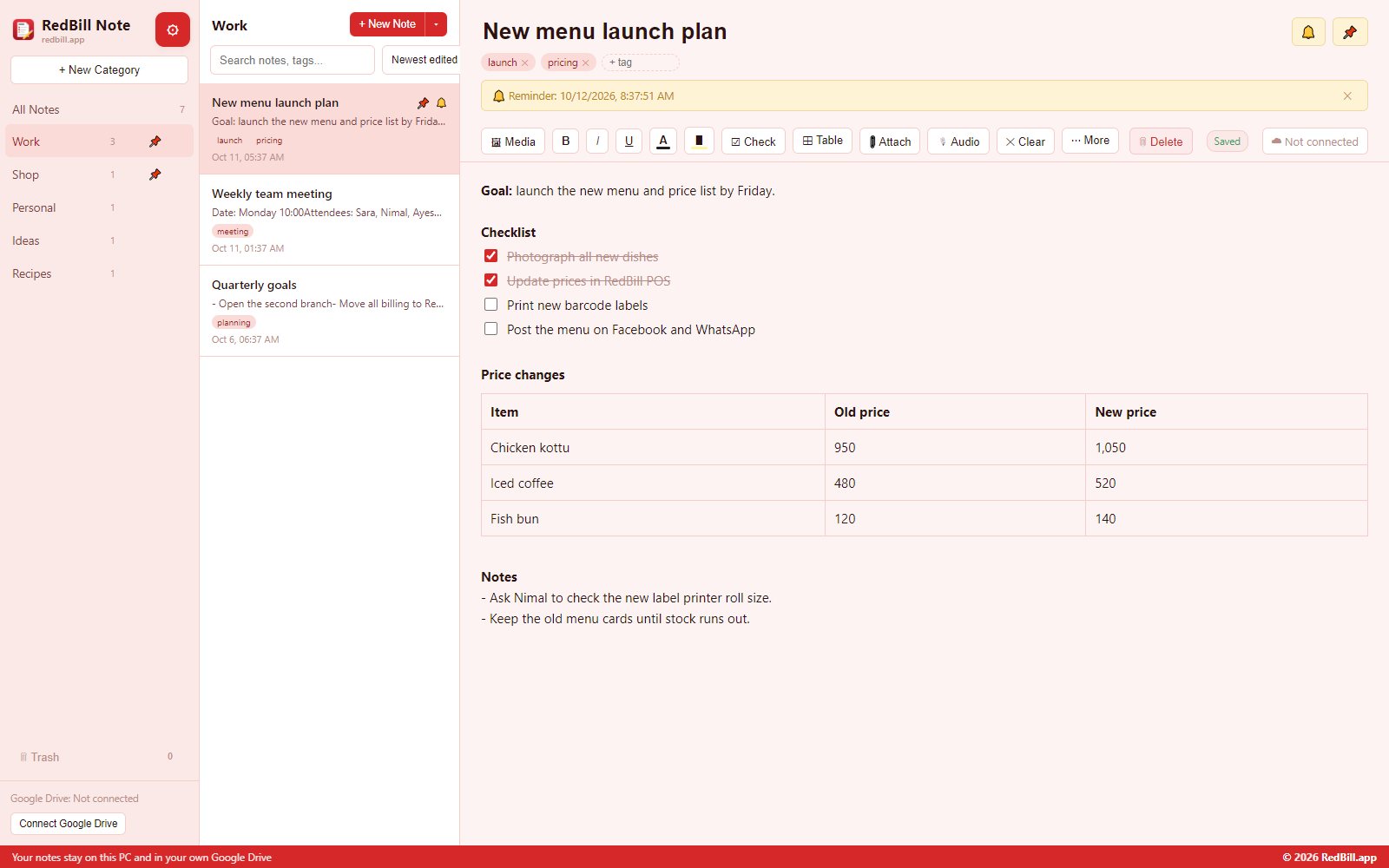
Notes are organized into unlimited categories and tags, and can contain checklists, tables, images, video, audio recordings and attached files. Markdown-style typing, note templates, smart search, reminders with Windows notifications and a global Ctrl+Shift+N quick-note hotkey make it fast to capture and find information.
A version history checkpoint is saved about every 10 minutes while you edit, deleted notes stay in Trash for 30 days, and an optional PIN lock protects private notes.
| Developer | RedBill.app |
|---|---|
| Latest version | v1.3.1 |
| Last updated | |
| Price | Free — no trial, no subscription |
| Platform | Windows 10 and Windows 11 (64-bit) |
| Download size | 78 MB (.zip) |
| Backup | Automatic, to your own Google Drive |
| Account needed | No — no sign-up |
| Install | No administrator rights needed |
| License | Free software license |
What can RedBill Note do?
Every feature below ships in the free download. Nothing is locked behind a plan.
Organize with categories
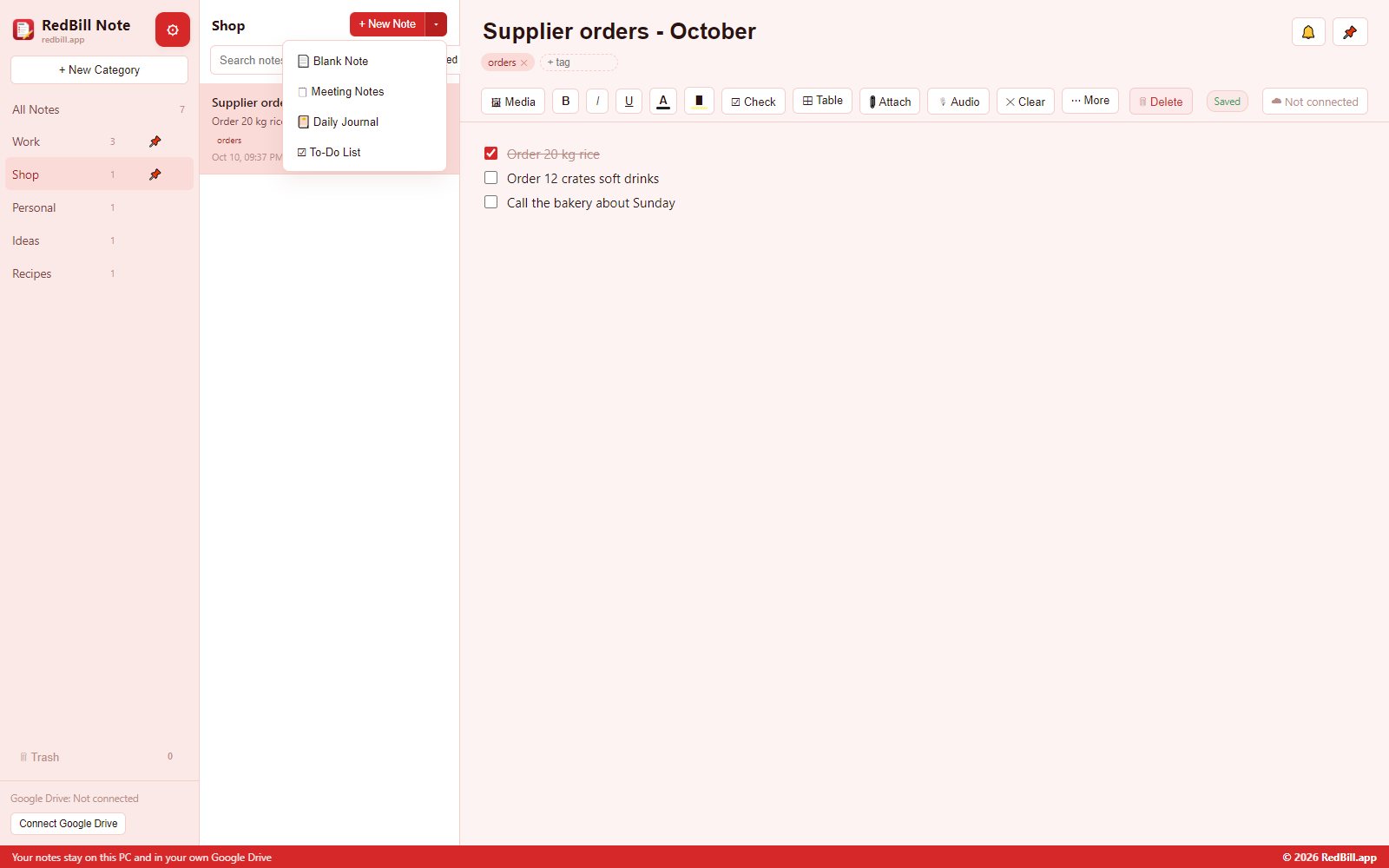
Group notes into unlimited categories. Pin the ones you use most and rename or reorder them any time.
Tags across categories
Label a note with as many tags as you like, then find it instantly by tag, even across categories.
Smart search & sorting
Search titles, body text and tags as you type. Sort by newest, oldest, A–Z, or show notes with media first.
Checklists
Insert clickable checkbox items. Tick one off and it is struck through, so progress is visible at a glance.
Tables
Drop in an editable table for schedules, price lists, comparisons or anything with rows and columns.
Markdown-style typing
Type "- " for bullets, "1. " for numbers, "# " for headings and **text** for bold. Formatting appears as you type.
Note templates
Start from Meeting Notes, a Daily Journal, a To-Do List or a blank page, so you never start from zero.
Version history
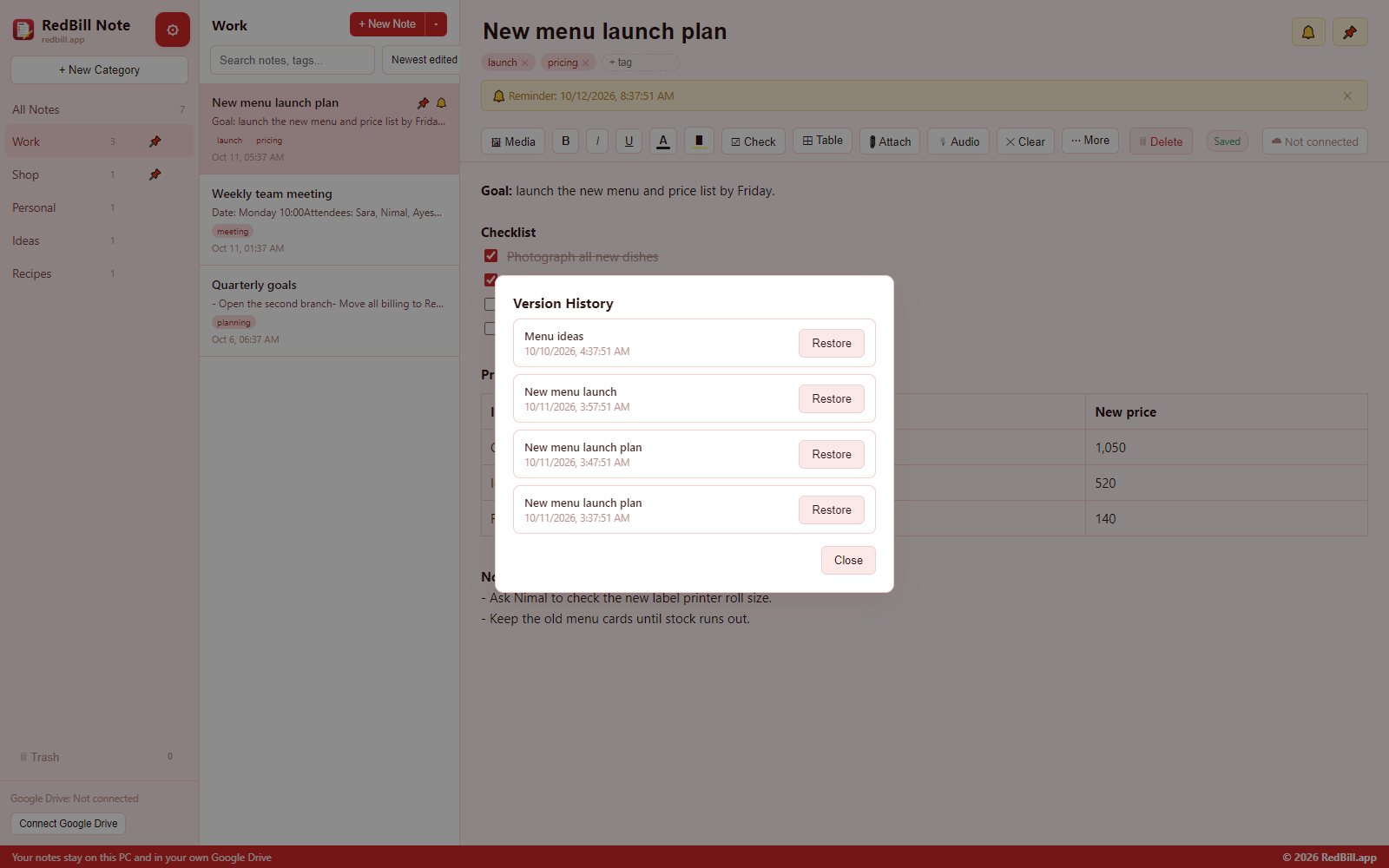
A checkpoint is saved about every 10 minutes while you edit. Browse earlier versions and restore any of them.
Quick note hotkey
Press Ctrl+Shift+N from anywhere on your PC to jot a note in a small window without leaving what you're doing.
Attach any file
Attach PDFs, documents, spreadsheets or any other file to a note and open it with one click.
Audio notes
Record a voice memo right inside a note, with a live timer, and play it back any time.
Images & video
Embed photos and clips in your notes. Large images are resized automatically so notes stay fast.
Export anywhere
Export any note as PDF, Markdown or plain text, ready to share, print or archive.
Trash & recovery
Deleted notes go to Trash and stay recoverable for 30 days before they are removed for good.
Reminders
Set a date and time on any note and get a native Windows notification when it is due.
Themes & PIN lock
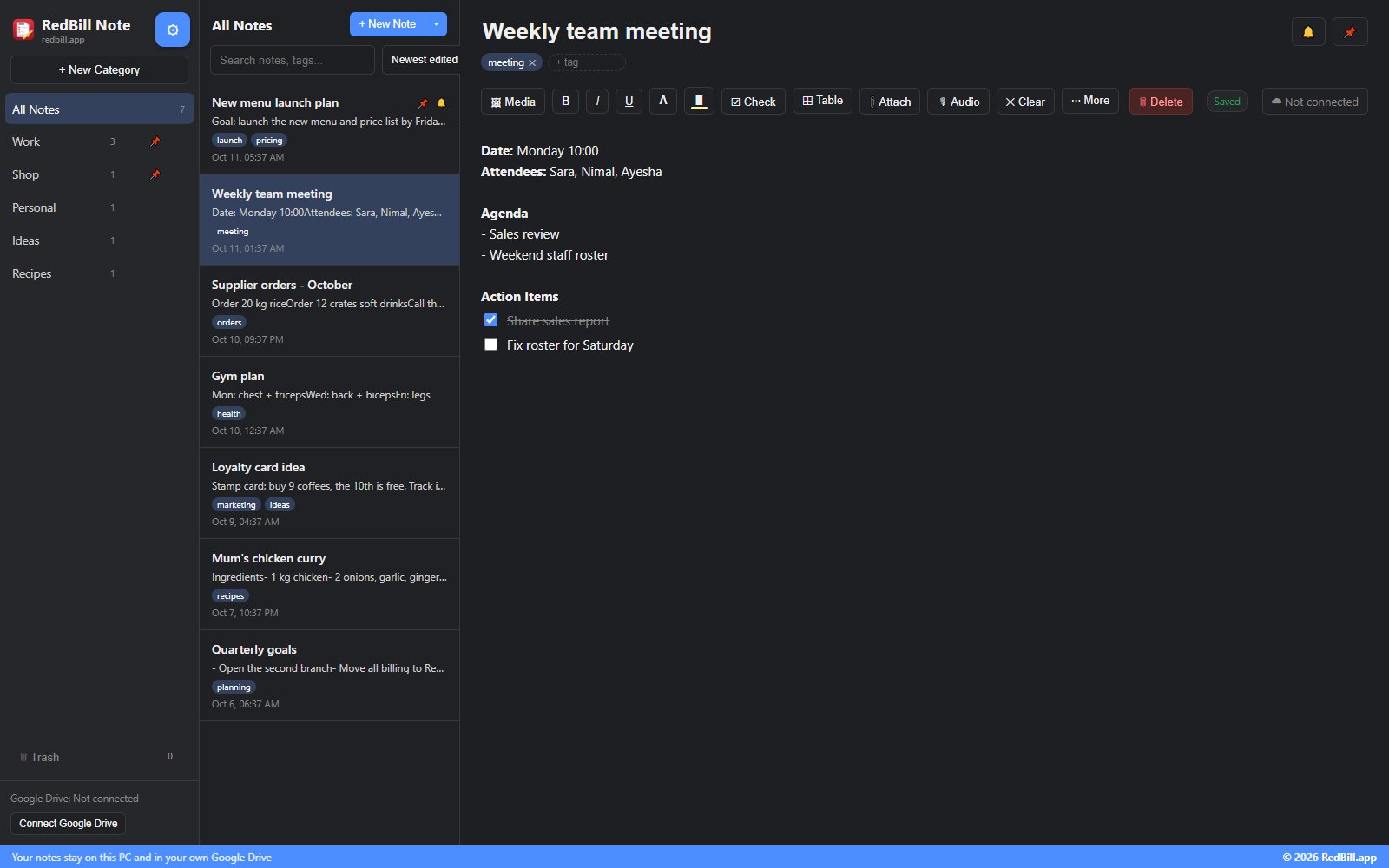
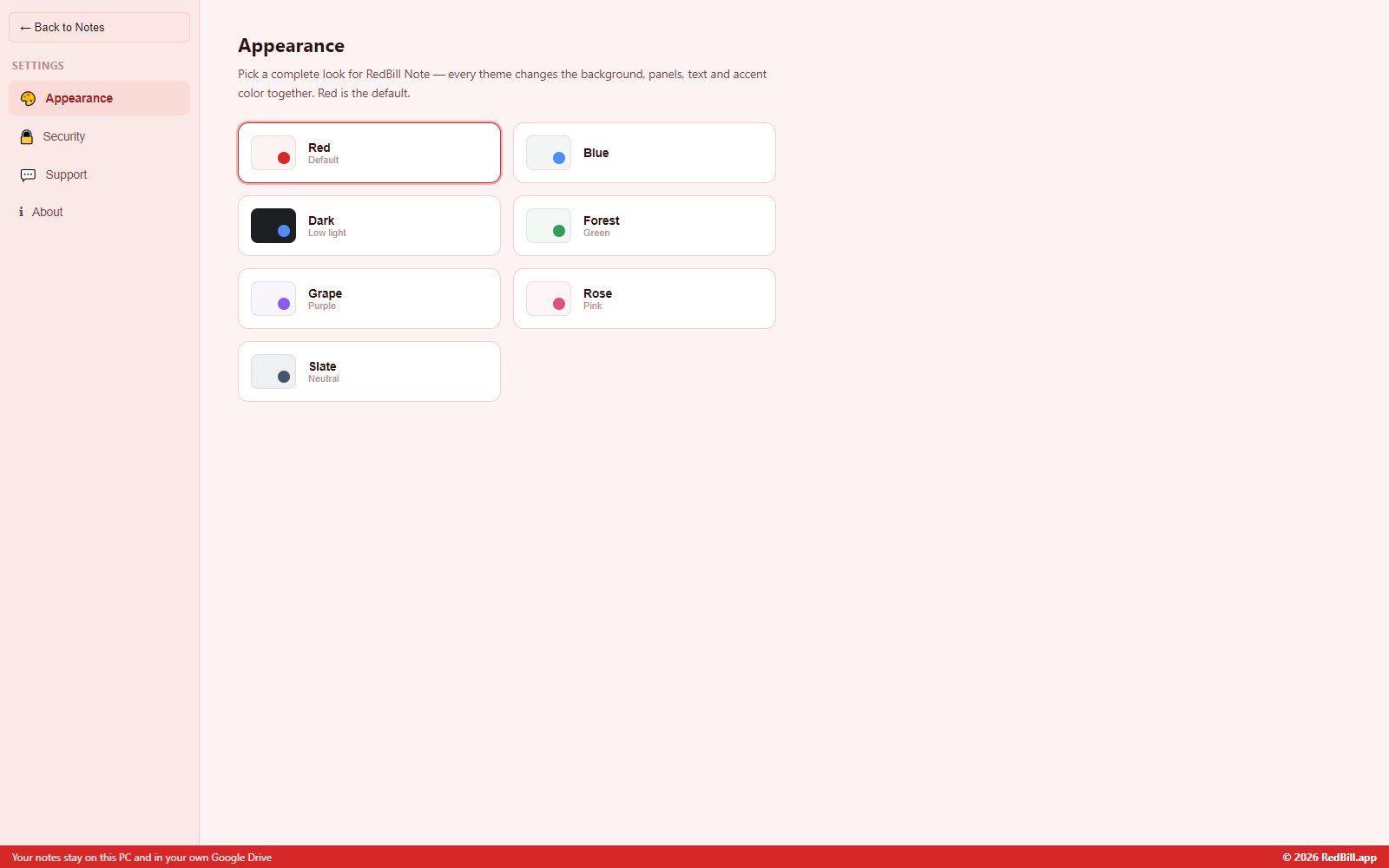
Seven themes (Red by default). Optionally protect your notes with a PIN that is checked every time you open the app.
Google Drive backup
Every edit syncs to your own Google Drive automatically. Restore on a new PC in one click, with no third-party servers involved.
RedBill Note screenshots
How do I install RedBill Note?
Up and running in under a minute.
Download and extract
Tick the box on the RedBill Note page, click Download for Windows, then right-click the zip and choose Extract All.
Run the installer
Double-click RedBill-Note-Setup. It installs for your Windows user only, so no administrator password is needed. Installing over an older version keeps all your notes.
Start writing
Create your first category and note. Optionally connect Google Drive to back up every edit automatically.
How do I use RedBill Note?
Organize notes with categories and tags
- Create a category for each area of your work or life and pin the ones you use most.
- Add tags to any note; a tag finds notes across all categories.
- Use smart search to find titles, text and tags as you type, and sort by newest, oldest or A–Z.
Write faster with checklists, tables and templates
- Type “- ” for bullets, “1. ” for numbers, “# ” for headings and **text** for bold.
- Insert clickable checklists and editable tables from the toolbar.
- Start from the Meeting Notes, Daily Journal or To-Do List template.
Back up to Google Drive and move to a new PC
- Connect Google Drive in RedBill Note and sign in with your Google account.
- Every edit is backed up automatically to your own Drive.
- On a new PC, install RedBill Note, connect the same Google account and restore your notes in one click.
Restore an older version or a deleted note
- Open a note’s version history to see checkpoints saved about every 10 minutes and restore any of them.
- Open Trash to bring back a note deleted in the last 30 days.
RedBill Note questions and answers
Direct answers to what people ask most before downloading RedBill Note.
Is RedBill Note really free?
Yes. RedBill Note is free on any number of PCs. Every feature is included in the free download and nothing is locked behind a plan.
Do I need an account to use RedBill Note?
No. There is no sign-up and no RedBill account. Notes stay on your PC; the optional backup goes to your own Google Drive.
How does the Google Drive backup work?
Connect your Google account in the app. Every edit is synced to your own Google Drive automatically. On a new PC, install RedBill Note, connect the same Google account and restore all notes in one click.
Can I recover an older version of a note?
Yes. A version-history checkpoint is saved about every 10 minutes while you edit. Open the note’s history to browse and restore any earlier version. Deleted notes also stay in Trash for 30 days.
Can I export my notes?
Yes. Export any note as PDF, Markdown or plain text to share, print or archive it.
Is there a quick way to jot a note?
Press Ctrl+Shift+N anywhere in Windows to open a small quick-note window without leaving what you are doing.
Can I protect my notes with a password?
Yes. Set a PIN in the app; it is checked every time RedBill Note opens.
Windows says “Windows protected your PC” — is it safe?
That message appears for new apps that are not yet widely downloaded. Click More info and then Run anyway. To confirm your download is genuine, compare its SHA-256 fingerprint with the one shown under the download button on this page.
Where can I get help?
Email hello@redbill.app with your Windows version and a screenshot.
Is RedBill Note free? Terms of use
Free use
RedBill Note is free on any number of PCs, with every feature included. No sign-up, no subscription.
No reselling
You may share the unmodified installer for free. You may not sell it or distribute modified versions without written permission from RedBill.app.
Your data & privacy
Notes stay on your PC and, if you connect it, in your own Google Drive. The app can only see the files it creates there; RedBill.app never receives your notes.
No warranty
The software is provided “as is”, without warranty of any kind. To the maximum extent permitted by law, RedBill.app is not liable for any loss of data or other damages from using it. Keep the Google Drive backup turned on.
Get RedBill Note for Windows
Version 1.3.1 · 78 MB · Free · No sign-up · Google Drive backup
Download for Windows